TABLE OF CONTENTS
There are two ways to get clips into Medal: import clip files you already have, or sync another recorder (like OBS, ShadowPlay, or ReLive) so its clips appear in Medal automatically. Both are covered below.
Mass importing old Medal Clips
If you still have your original clip files saved on your computer, you can easily import them back into Medal.
Drag and Drop Clips Into Medal
The quickest method is to drag and drop your clip files directly onto the Medal app window.
You can import multiple clips at once
Medal will automatically process the entire batch
Supported formats are:
.mp4
.mov
.mkv
.webm
.png
.jpg
.jpeg
.webp
.heif
.avif
Import Clips From Your Library
You can also import clips manually from your Clip Library:
Open Medal
Go to your Clip Library
Click the Import button in the top-left
In the file picker:
Hold Ctrl to select individual clips
Hold Shift to select a range of clips
Click Open to begin importing
Setting the Correct Game
Imported clips will appear with the game set to Imported by default.
To organize your clips correctly:
Click on an imported clip
Select or change the game title manually on the right side
We are incredibly excited to introduce a way for you to use Medal with any recorder, not just our own. This means that if you clip with Shadowplay, ReLive or OBS, you can still use Medal’s best-in-class editor and save space by uploading your finished clips directly to Medal.tv to save space on your hard drive.
If you decide to use a different recorder, we recommend turning the recorder in Medal off under Settings > Recorder Settings.
Setting up your External Recorder
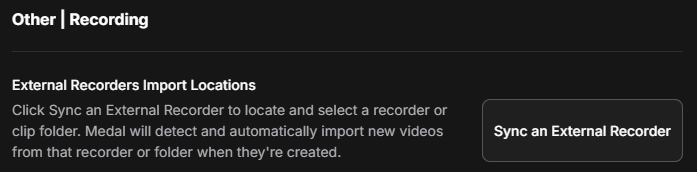
To get started, open your Medal app and go to Settings > PC Storage > Other | Recording. In this section, find the External Recorders Import Locations and click on the Sync an External Recorder button.
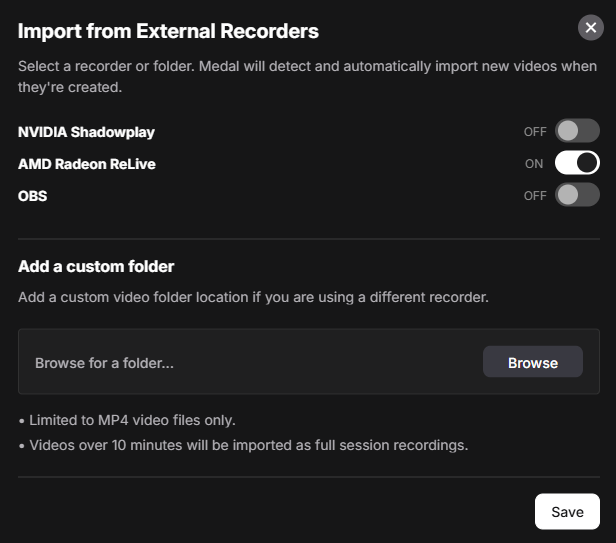
On this page, select which external recorder you want to sync with. After selecting your recorders, click Save Changes. Please ensure that the folder is empty before assigning it.
Medal will automatically detect new clips when they are created or added to the selected recorder/folder. If you want to use a custom recorder that we don’t yet support, you can manually browse your computer and select the recorder's video folder.
Once assigned, you can move your clips in batches to make them visible in your clip library.
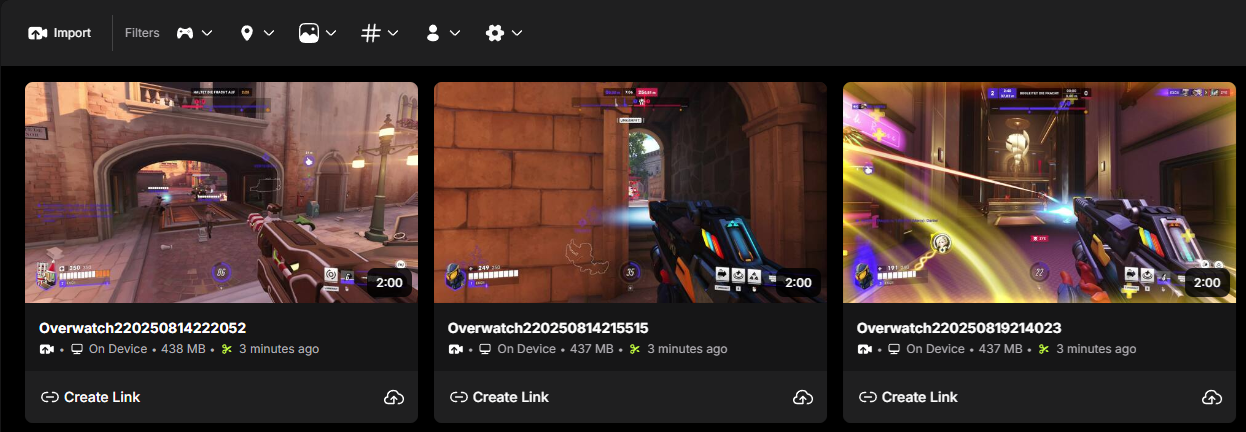
After setting up your recorders and creating new clips, you should now see the clips in your Medal library without needing to manually import them.
If you still need assistance with this, please contact Support.
Was this article helpful?
That’s Great!
Thank you for your feedback
Sorry! We couldn't be helpful
Thank you for your feedback
Feedback sent
We appreciate your effort and will try to fix the article