TABLE OF CONTENTS
- Where can I find it?
- How do I set it up?
- Types of Overlays
- Video Overlays in our Editor
- Mouse & Keyboard Overlay (APM Line)
- Video Overlay isn't working. What do I do?
You can now embed several different overlays into your recording, such as your camera, keyboard and mouse (KBM) inputs, and more! This give you greater control over how your clips look and showcase exactly what's happening during your gameplay!
Where can I find it?
You can locate the Video Overlay settings in Settings > Video Overlays.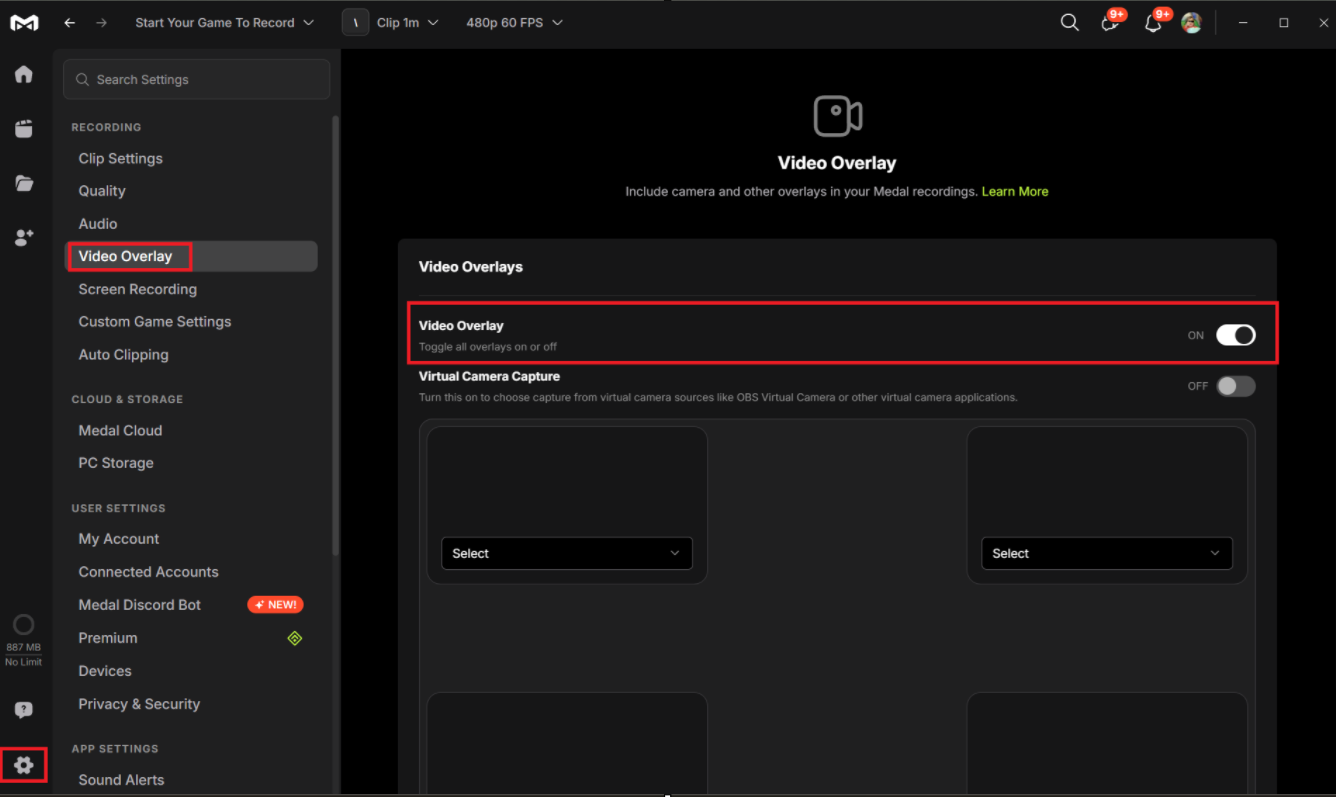
How do I set it up?
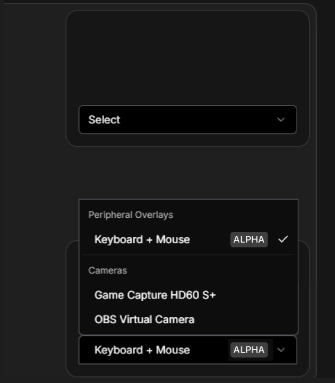
Enable the Video Overlay setting and select the type of overlay you want Medal to use in your recordings. Medal will then detect the types of cameras and peripherals you may have so that it can be used.
Enable Virtual Camera Capture to bring in video from a software-based camera source. Select virtual cameras such as OBS Virtual Camera or other virtual camera applications to apply custom effects or filters for your video feeds.
Types of Overlays
Webcam Overlay - Add a live video feed of yourself to your clips! Perfect for showing reactions, commentary, or creating more personal creative content!
Keyboard/Mouse (KBM) Overlay - Display your key presses and mouse clicks in real time! Great for tutorials, showcasing skill, or helping those who view your clips to follow along with your inputs.
More overlay options, such as controller and steering wheel support, will be available soon. Stay tuned for updates!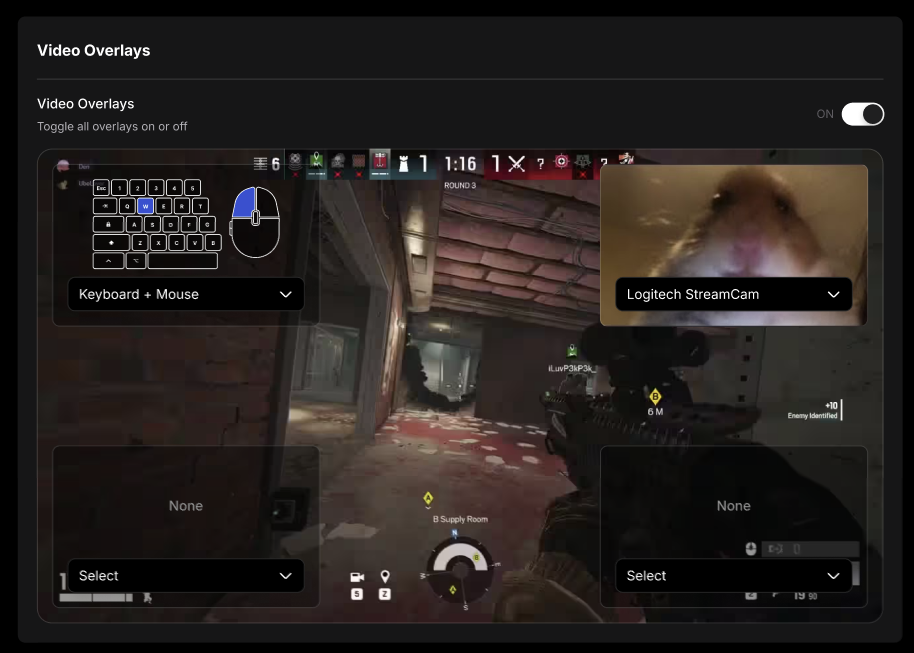
Video Overlays in our Editor
Currently, it is not possible to hide a recorded overlay in our editor!
Mouse & Keyboard Overlay (APM Line)
When the Mouse & Keyboard (M&B) Overlay is enabled and recorded in a clip, opening that clip in the Preview window will display a blue line along the timeline.

This blue line represents APM (Actions Per Minute) — a metric that shows how many mouse clicks and key presses are happening over time. Higher spikes indicate moments of increased activity, such as intense fights or high-input gameplay.
In the timeline, this visual indicator helps you quickly spot high-action moments and better understand how active your inputs were throughout the clip.
The blue APM line only appears in the Preview window & if the M&B Overlay was enabled and recorded at the time of capture.
Video Overlay isn't working. What do I do?
First, make sure your input devices are properly connected and recognized by your PC. Disable and re-enable the overlay setting to refresh. Lastly, try running a simple repair of Medal to fix any minor glitches or missing files. You can learn more here.
If you're still having troubles with the video overlay, please submit a ticket here for assistance.
Was this article helpful?
That’s Great!
Thank you for your feedback
Sorry! We couldn't be helpful
Thank you for your feedback
Feedback sent
We appreciate your effort and will try to fix the article