Medal offers two ways to record extended gameplay:
Automatically Record Entire Game Session – Records your entire game session from start to finish.
Start/Stop Long Recording Hotkey – Allows you to manually begin and end a long recording with a single hotkey.
This guide will walk you through how both features work, where to find your recorded sessions, and how to enable them in settings.
TABLE OF CONTENTS
- How It Works
- Where are Your Recorded Sessions Located?
- How To set your Start/stop Long Recording hotkey
- Check Out More "How To" Articles
How It Works
Long Recording: Records your entire game session automatically from when the game opens all the way until the game is closed. You can still press any clipping or bookmark hotkeys to create highlights within that session.
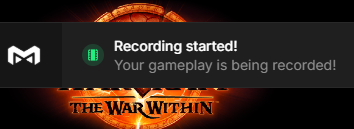
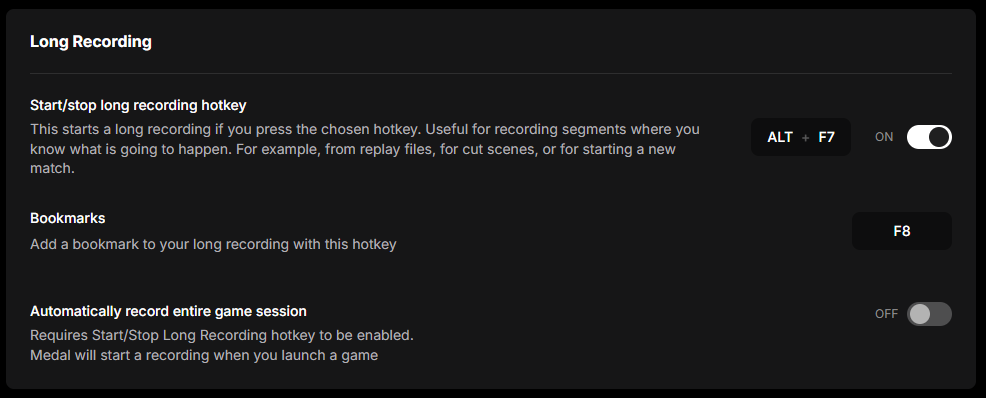
Start/Stop Long Recording Hotkey: Use the assigned hotkey (Default: Alt + F7) to begin recording at any point during your session. Medal will display a “Recording started” notification and play a voice confirmation. Press the hotkey again to stop and save your recording. This is especially useful for recording specific matches, replay files, or cutscenes without having to record the entire session.
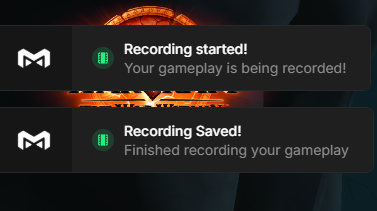
Where are Your Recorded Sessions Located?
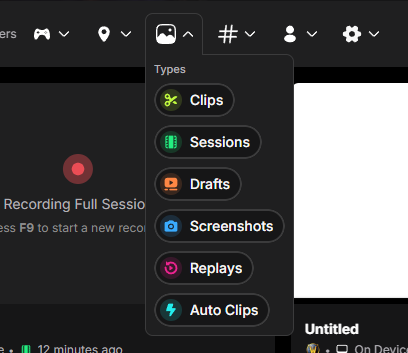
You can find your session in your Library by filtering it to Sessions.
How To set your Start/stop Long Recording hotkey
To toggle this option as a current Medal user, go to Settings > Capture Hotkeys > Long Recording and then switch on the option "Start/stop long recording hotkey", you can also update the hotkey here.
Check Out More "How To" Articles
For more information on long recordings without Hold to Record enabled, check out this link: Click here to get started with Long Recordings
Once you have created your long recording, you will then be able to start trimming to create clips to upload to Medal!
Click here to get started with Trimming!
If you are still having an issue, please submit a ticket here for assistance.
Was this article helpful?
That’s Great!
Thank you for your feedback
Sorry! We couldn't be helpful
Thank you for your feedback
Feedback sent
We appreciate your effort and will try to fix the article