How to add Non-Supported Games to Medal

Modified on Fri, 31 Jul at 7:14 AM - By Lee B

If the game you are playing is not yet on the list of supported games, you can request for that game to be supported and immediately start clipping! Once the game has been approved by the team, any clips you have taken of that game will be automatically assigned to the new game category! Requesting a game only takes a few steps.


TABLE OF CONTENTS


Finding the settings

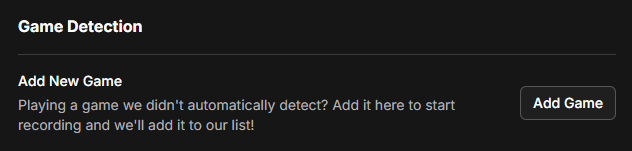
  • Go to Settings > Recorder Settings and scroll down until you see an option called Add New Game under Game Detection.

  • Click the Add Game button, and it should send you to the On-Screen Prompts section
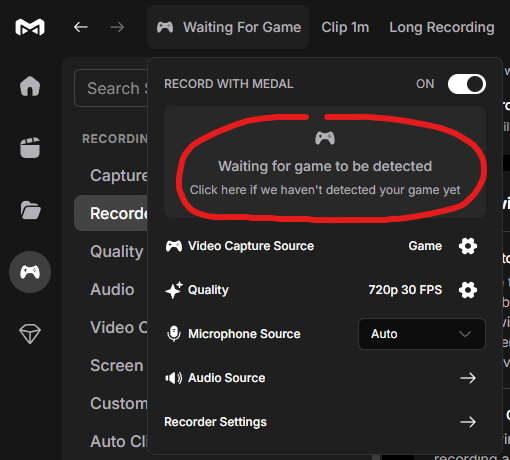
  • Alternatively, you can look at the top of the Medal app, and there will be a Waiting for Game button. Clicking it will open a small window.

  • If you don't see that your game is being detected, you can click on Waiting for game to be detected to add it.


On-Screen Prompts

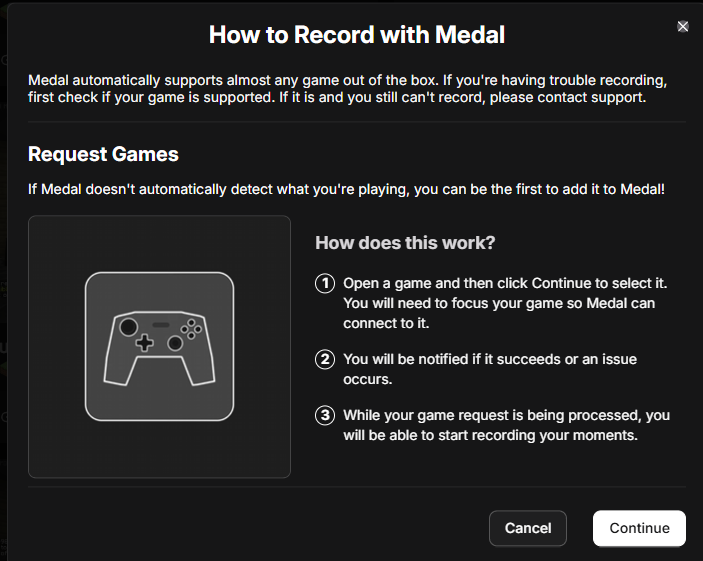
  • Once you have selected to add a new game, you will be presented with this screen, detailing the steps. Press Continue.
  • Once you select continue, Medal will begin the game detection process. Make sure that your game is running!
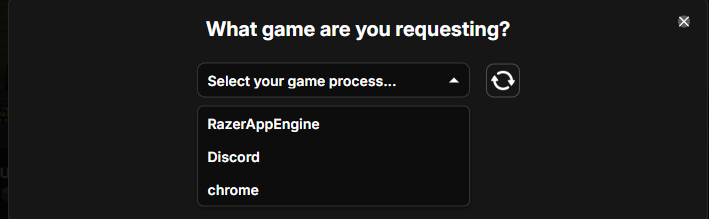
  • Choose the game from the dropdown menu.
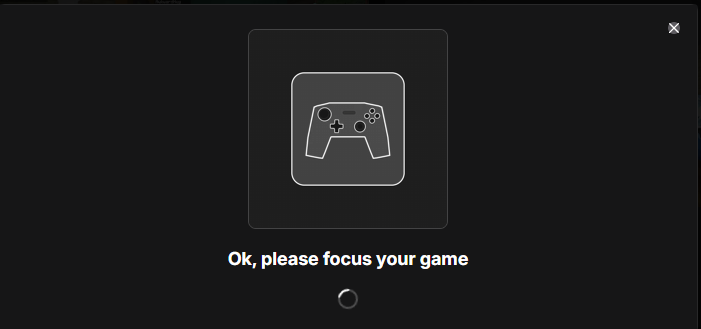
  • You will then be asked to focus the game. This means to open your game so that you can continue playing.
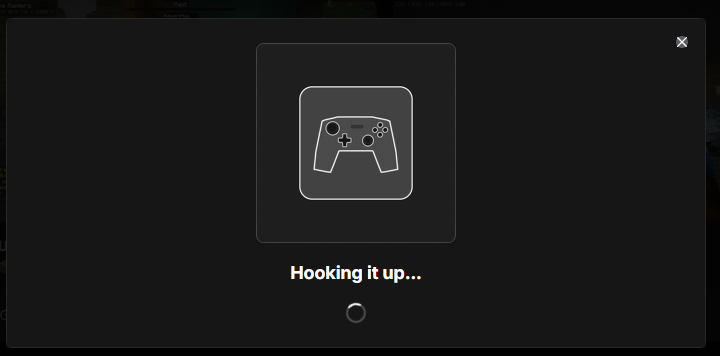
  • Medal will attempt to hook into your game so that you can begin clipping your favorite moments.
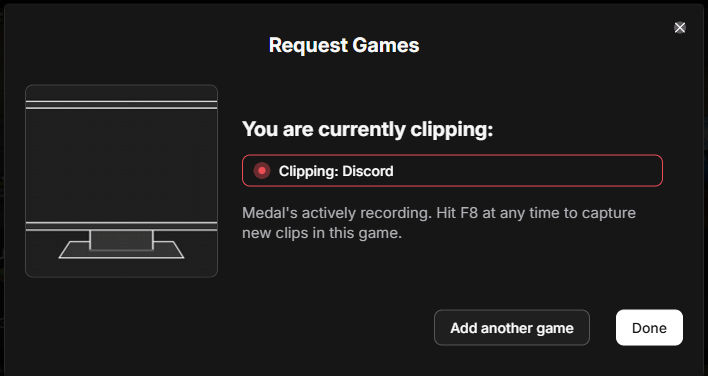
  • If successful, you will see a notification and the game you are clipping. You can now start clipping, trimming, and sharing your game!
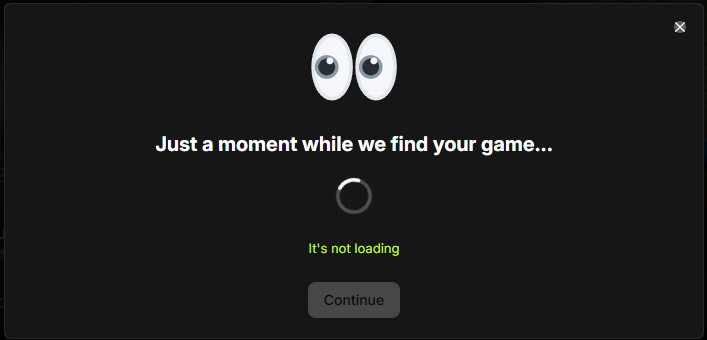
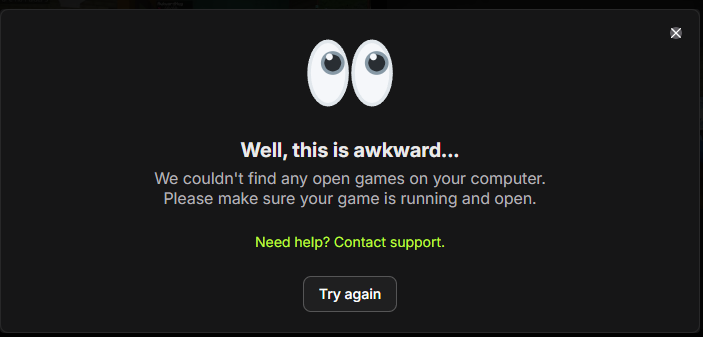
  • If at any point you see this screen, make sure that your game is open and running. If your game is open and Medal still cannot find your game, please reach out to support.

Removing/unhooking requested games


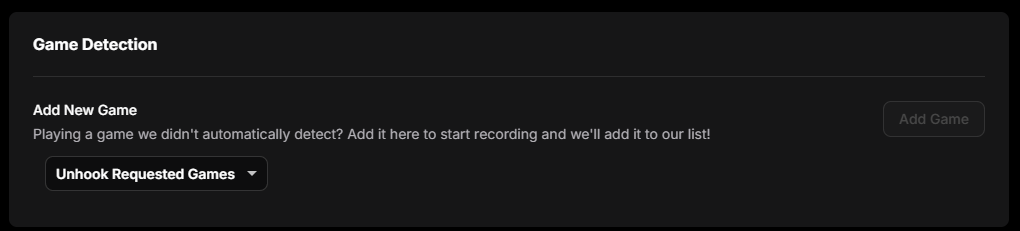
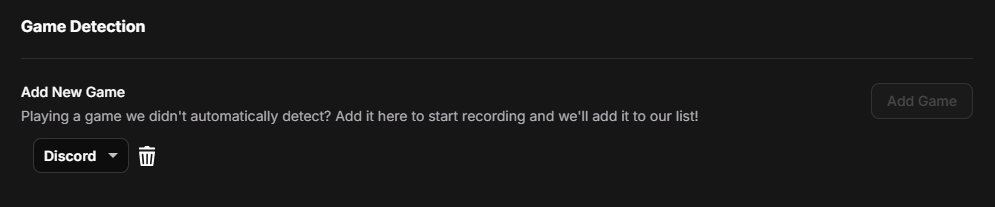
You will also see a list of hooked games from your list by going to Settings > Recorder Settings > Game Detection. This is only for games you have requested, not for officially supported games.


If you wish to unhook a game, you can choose from the dropdown and click the trash bin.


Note: It may take a few seconds for the unhook option to appear, and sometimes you will need to restart Medal for it to take full effect


Once a game has been requested and approved by the Medal team, your clips will automatically be recategorized to the correct game, and your Requested Game hook will be removed.

Was this article helpful?

That’s Great!

Thank you for your feedback

Sorry! We couldn't be helpful

Thank you for your feedback

Let us know how can we improve this article!

Select at least one of the reasons
CAPTCHA verification is required.

Feedback sent

We appreciate your effort and will try to fix the article